How to change your location on Tinder & Bumble with Location Guard for FREE 2026
If your Tinder/Bumble matches feel dead, your location might be the hidden problem. This guide shows a practical way to preview matches in a new area using Location Guard (in the browser), then get your profile ready so you can convert those matches.
Quick links: Best Tinder Pictures → Best Tinder Bios → Tinder Algorithm (ELO) → How to Get Matches • Homepage • Download SwipeHelper
Why change your location on Tinder and Bumble?
People look for ways to change their location on dating apps for a few common reasons:
- Widening your dating pool — Apps prioritize matches who are close by. Setting your location to another city lets you browse and match there before you’re there in person.
- Long-distance or future plans — If you’re in a long-distance situation or planning to relocate, you might want to see who’s in that area.
- Travel — You can “preview” matches in a destination before you arrive, so you’re not starting from zero the day you land.
Doing this in the browser (e.g. Tinder.com or Bumble.com) is where a tool like Location Guard comes in — it changes the location your browser reports to sites.
How to use Location Guard with Tinder and Bumble (free)
Location Guard is free. You can use the extension at no cost to set a custom location for websites that ask for your position. There’s a paid tier with extra features, but for changing your location on Tinder or Bumble in the browser, the free version is enough. Here’s how to use it in Chrome:
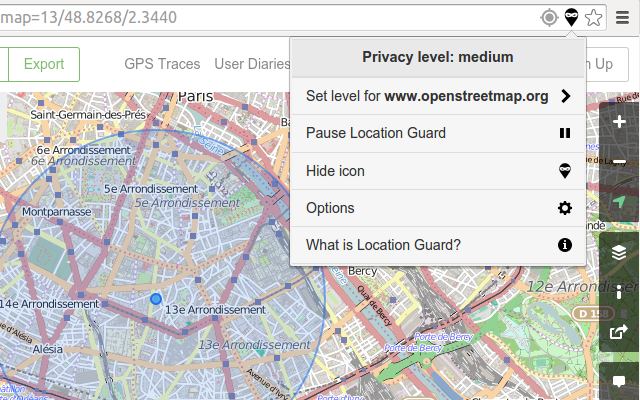
- Install Location Guard — Open the Chrome Web Store, search for “Location Guard,” and add the extension to Chrome.
- Turn it on — After installation, a map pin icon appears in Chrome’s toolbar (top right). Click it to open and activate the extension.
- Pick a location — In the extension’s map, either search for a city or click on the map to set an exact spot. The location you choose is what Tinder or Bumble will see.
- Handle Chrome’s permission prompt — When a site asks for your location, Chrome may show a browser prompt. For Location Guard to control what’s sent, choose “Block” or “Deny” so the site uses the extension’s spoofed location instead of your real one.
- Open Tinder or Bumble — Go to the dating site in the same browser. Once the page loads, it should use the location you set in Location Guard, and you’ll see profiles for that area.
When you’re done browsing in that location, open the extension again and turn it off or reset the location so other sites get your real position if needed.
Is Location Guard safe to use?
Location Guard is a well-known extension and is generally considered safe for basic location spoofing. Many users rely on it for privacy or testing. The developer states that it doesn’t store personal data beyond the location you select. The extension is lightweight and doesn’t require an account for the free version — you can install it and start spoofing your location on Tinder or Bumble without paying anything. A paid tier exists with more features, but for this use case the free option is sufficient.
Drawbacks and risks of location spoofing
There are some important downsides to keep in mind:
- Against the apps’ rules — Tinder and Bumble prohibit faking your location. If they detect spoofing, your account can be restricted or permanently banned.
- Technical issues — Spoofing can sometimes cause odd behavior or mismatched results (e.g. the app thinks you’re in one place but other signals don’t match). Picking an unrealistic or far-away location can make that more likely.
- Trust — If you match with someone and they later find out you weren’t actually in that city, it can damage trust. It’s worth being upfront about where you are and when you’ll be there.
Can you get banned for spoofing?
Yes. If Tinder or Bumble detect that you’re spoofing your location, they can suspend or permanently ban your account. There’s no guarantee they won’t detect it, so spoofing is done at your own risk.
Official (paid) ways to change your location
If you’d rather not spoof and are okay paying, both apps offer in-app features that let you change your location within their rules:
- Tinder Passport — Tinder’s paid feature (included in Tinder Plus, Gold, or Platinum) lets you change your location to any city in the world. You can swipe in that location and match with people there before you arrive. No extension or spoofing required, and it’s allowed by Tinder.
- Bumble Travel Mode — Bumble’s paid feature lets you set your location to a city you’re traveling to. You can match there in advance without spoofing or breaking the rules.
- Update your profile — For a free, rule-friendly option, mention in your bio that you’re moving or traveling to a certain place. Some people will swipe based on that, even if the app still shows your current location.
Using Tinder Passport or Bumble Travel Mode avoids the risk of a ban. Location Guard is the free alternative if you don’t want to pay for those features.
Summary
Location Guard is free and lets you set a custom location in Chrome so that Tinder and Bumble (in the browser) see a different city or area. That can be useful for travel or relocation without paying for Tinder Passport or Bumble Travel Mode. However, it violates the apps’ rules and can lead to a ban. If you want to explore another location without risk, use Tinder Passport or Bumble Travel Mode (paid), or simply update your profile and bio to mention where you’re headed.